
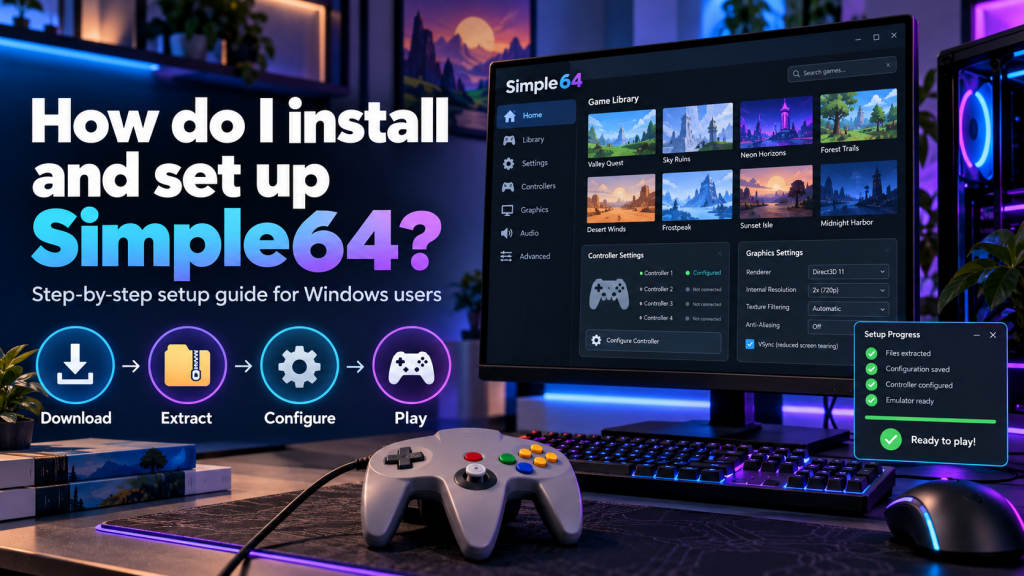
Simple64 is a free, open-source Nintendo 64 emulator that allows users to play classic N64 games on compatible modern computers. If you enjoy retro gaming, learning how to install and set up Simple64 can help you experience your favorite titles without needing the original console. The emulator offers accurate graphics emulation, controller customization, save states, and several useful gaming features.
Installing Simple64 is relatively straightforward because its Windows version does not require a traditional installation wizard. However, configuring the emulator correctly is important for smooth gameplay. This guide covers downloading, extracting, launching, configuring controllers, loading games, and resolving common setup problems.
What Do You Need Before Installing Simple64?
Before installing Simple64, check whether your computer meets the emulator’s hardware requirements. Unlike some lightweight emulators, Simple64 uses accurate graphics emulation that requires specific processor instructions and modern graphics support.
A compatible system should meet the following requirements:
| Component | Requirement |
|---|---|
| Operating System | Compatible 64-bit Windows 10 or 11 |
| Processor | x86-64 CPU with AVX2 support |
| Graphics Card | Vulkan 1.1 or newer |
| Storage | Space for emulator and game files |
| Input Device | Keyboard or compatible controller |
| Graphics Drivers | Updated manufacturer drivers |
Meeting these requirements helps reduce crashes, startup failures, and graphics-related errors. Older computers without AVX2 instructions or Vulkan support may be unable to run the emulator.
Downloading the Correct Simple64 Package
Start by visiting the official Simple64 GitHub repository through your preferred browser. Open its Releases section and locate the latest available version for Windows.
Look for the archive beginning with simple64-win64 and ending in .zip. Download this package instead of the source code archive, which is intended for developers rather than regular users.
Installing Simple64 on Windows
Simple64 uses a portable installation method, meaning you can run it directly from an extracted folder. This eliminates the need for a traditional installer or lengthy setup procedure.
Follow these steps to prepare Simple64:
- Locate the downloaded ZIP archive.
- Right-click the file and select Extract All.
- Choose a suitable destination folder.
- Complete the extraction process.
- Open the extracted Simple64 folder.
- Find the
simple64-gui.exeapplication. - Double-click the executable to launch Simple64.
Keep the extracted files together because the emulator depends on accompanying components. Moving individual files outside their folder may cause unexpected errors.
Opening the Emulator for the First Time
After launching Simple64, the main application window should appear. From this interface, you can access configuration menus, open game files, and manage supported emulator features.
If the application fails to launch, confirm that your CPU supports AVX2 instructions and your graphics card supports Vulkan. Updated graphics drivers are particularly important for successful initialization.
Configuring Graphics for Better Performance
Simple64 uses ParaLLEl graphics emulation to reproduce Nintendo 64 visual effects accurately. Its graphics system prioritizes faithful rendering, although demanding games may require relatively powerful computer hardware.
Open Settings > Core and Video Settings to review available configuration options. Avoid changing unfamiliar settings unnecessarily, and test gameplay after adjustments to identify improvements or performance problems.
Setting Up Keyboard and Gamepad Controls
Proper controller configuration makes Nintendo 64 games easier to play. Simple64 allows users to customize keyboard inputs and connect supported gamepads for a more traditional gaming experience.
To configure a controller:
- Connect your controller to the computer.
- Open Settings > Controller Configuration.
- Select Manage Profiles.
- Choose New Profile and select Gamepad.
- Assign the required controller buttons.
- Save your newly created profile.
- Select your profile and connected gamepad.
Keyboard users can create a keyboard profile instead. Always test important buttons before launching a game to ensure controls respond correctly.
Loading Nintendo 64 ROM Files
Once your controls are configured, you can begin loading compatible Nintendo 64 games. Simple64 uses ROM files containing game data that the emulator interprets during gameplay.
Open the emulator’s file menu and select the option to load a ROM. Browse to your legally obtained game file, select it, and allow the emulator to start the game.
Managing Game Saves and Progress
Simple64 supports regular game saves and save states, helping users preserve gameplay progress. Save states capture the current emulation session, allowing players to return to a particular moment.
On Windows, regular saves are generally stored in the Mupen64Plus save directory within AppData. Users can also customize save locations through the emulator’s settings when necessary.
Understanding Additional Gaming Features
Besides basic Nintendo 64 emulation, Simple64 includes several optional features. These functions improve convenience and allow users to customize their gaming experience.
| Feature | Purpose |
|---|---|
| Save States | Restore previous gameplay sessions |
| Netplay | Play supported multiplayer games online |
| Cheat Menu | Manage compatible game cheats |
| Memory Pak | Support compatible game saves |
| Rumble Pak | Enable supported vibration feedback |
Online multiplayer depends on compatible servers and network availability. Because Simple64 development has stopped, previously available online services may not remain operational.
Fixing Common Simple64 Setup Problems
Sometimes Simple64 experiences startup failures, missing graphics, unresponsive controllers, or slow gameplay. These problems frequently involve hardware limitations, outdated drivers, or incorrect configuration settings.
Try the following solutions:
- Update your graphics drivers.
- Verify AVX2 and Vulkan compatibility.
- Re-extract the complete ZIP package.
- Check controller profiles and button assignments.
- Close conflicting recording software.
- Select the dedicated GPU on compatible laptops.
- Restart the emulator after adjusting settings.
If problems continue, restore previously working settings before making additional changes. Simple64’s discontinued development also means newer hardware issues may remain unresolved.
Conclusion
Simple64 offers a convenient way to play classic Nintendo 64 games on compatible Windows computers without complicated installation procedures. By extracting the correct package, checking system compatibility, configuring controllers, and loading legally obtained ROM files, users can prepare the emulator for retro gaming.
Although Simple64 is no longer actively maintained, its existing features remain useful for many Nintendo 64 enthusiasts. Taking time to configure graphics, manage game saves, and troubleshoot common problems can help create a more reliable and enjoyable gaming experience.