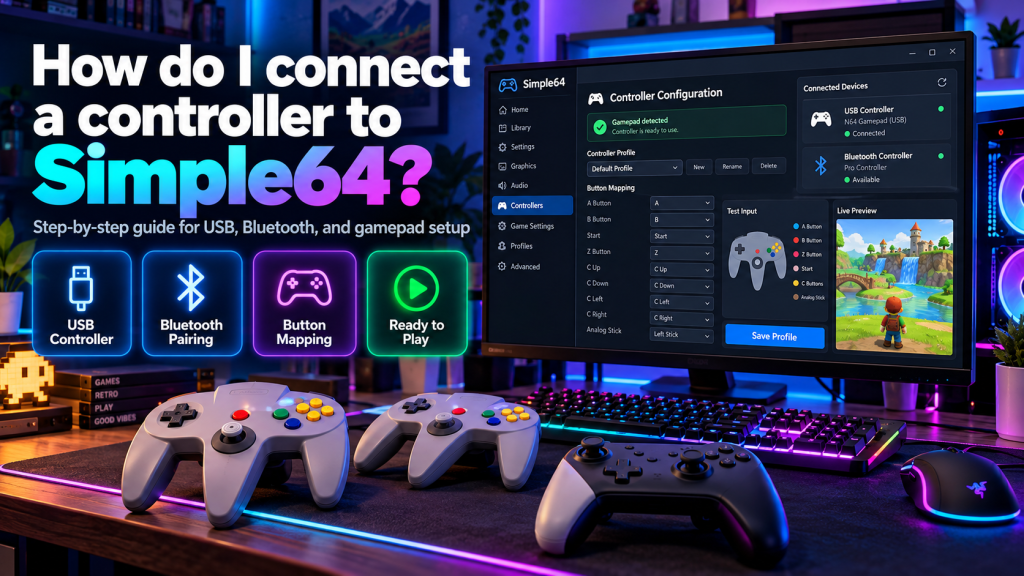
Simple64 is a free, open-source Nintendo 64 emulator that allows users to enjoy classic N64 games on modern computers. While keyboard controls are available, connecting a game controller can make the experience more comfortable and authentic. Whether you own a USB gamepad, Bluetooth controller, or retro-style Nintendo 64 controller, Simple64 provides customizable input settings to help you enjoy your favorite games.
Setting up a controller in Simple64 is relatively straightforward, but incorrect button mapping or device selection can sometimes cause problems. This guide explains how to connect different controllers, configure button profiles, adjust analog controls, and troubleshoot common connection issues.
Does Simple64 Support Game Controllers?
Yes, Simple64 supports compatible game controllers through its built-in input configuration system. Players can customize controller profiles, assign buttons, and select their preferred input devices before launching Nintendo 64 games.
The emulator supports keyboard profiles and various gamepads recognized by the operating system. However, compatibility may differ depending on the controller model, connection method, and available drivers.
Which Controllers Can You Use With Simple64?
Simple64 can work with different types of controllers when they are properly recognized by your computer. Some devices may require additional adapters, drivers, or manual button configuration.
| Controller Type | Connection Method |
|---|---|
| Xbox Controller | USB or Bluetooth |
| PlayStation Controller | USB or Bluetooth |
| USB N64 Controller | USB Connection |
| Original N64 Controller | Compatible USB Adapter |
| Generic PC Gamepad | USB or Wireless |
| Keyboard | Built-in or External |
Controller recognition is not guaranteed for every device. Testing your gamepad in Windows before configuring Simple64 helps identify connection issues.
Connecting a USB Controller to Your PC
A wired USB controller is often the simplest option for beginners. Most compatible devices can communicate with Windows automatically after being connected to an available USB port.
Insert the controller’s cable, allow Windows to recognize the device, and check whether its buttons respond. Once the controller is detected, launch Simple64 and continue with input configuration.
Pairing a Wireless Bluetooth Controller
Wireless controllers provide greater freedom of movement while playing Nintendo 64 games. Before using Bluetooth, confirm that your computer supports wireless connections and that the controller has sufficient battery power.
Open Windows Bluetooth settings, enable pairing mode on your controller, and select the device when it appears. After the connection succeeds, verify that Windows recognizes the controller before opening Simple64.
How to Configure a Controller in Simple64
Simple64 uses controller profiles to determine how physical buttons correspond to Nintendo 64 inputs. Creating a dedicated profile is important because connecting a gamepad alone may not automatically configure every button.
Follow these steps to set up your controller:
- Connect your controller before launching a game.
- Open Simple64 on your computer.
- Navigate to Settings > Controller Configuration.
- Select Manage Profiles.
- Choose New Profile (Gamepad).
- Assign the required Nintendo 64 buttons.
- Save your customized controller profile.
- Select your profile under Controller 1.
- Choose your connected device from the Gamepad selection.
- Launch a game to test the configuration.
After saving the profile, Simple64 should recognize the selected controller when its configuration matches your connected device.
Mapping Nintendo 64 Buttons Correctly
Nintendo 64 controllers feature a unique button layout, including an analog stick, directional pad, A and B buttons, C buttons, and shoulder triggers. Modern controllers arrange these inputs differently.
| N64 Button | Suggested Modern Controller Input |
|---|---|
| Analog Stick | Left Analog Stick |
| A Button | Main Action Button |
| B Button | Secondary Action Button |
| C Buttons | Right Analog Stick |
| Z Trigger | Left Trigger |
| R Button | Right Shoulder Button |
| Start | Menu or Start Button |
These mappings are suggestions rather than mandatory settings. Choose assignments that feel comfortable and match the controls required by your preferred games.
Adjusting Analog Stick Responsiveness
The Nintendo 64 analog stick controls movement in many classic games. Incorrect analog mapping can cause characters to move unexpectedly or prevent precise movement during gameplay.
Check that your physical analog stick is assigned to the corresponding Nintendo 64 inputs. If movement feels unusual, review the controller profile and any available sensitivity or dead-zone adjustments.
Using an Original Nintendo 64 Controller
Players who prefer authentic retro controls can connect an original Nintendo 64 controller through a compatible USB adapter. The adapter converts controller inputs into signals recognized by modern computers.
Simple64 also supports specialized raw-input functionality for certain Raphnet adapters. However, adapter compatibility depends on hardware, connection settings, and the emulator’s supported input configuration.
Setting Up Controllers for Local Multiplayer
Simple64 allows multiple players to use separate controller configurations during supported multiplayer games. Each player should have an appropriately connected and configured input device.
Open Controller Configuration and assign the correct gamepad and profile to each player slot. Confirm that every controller responds independently before launching a multiplayer session.
Why Is My Controller Not Working in Simple64?
Sometimes a controller works in Windows but fails to respond inside Simple64. This can happen because of incorrect profile selection, missing button assignments, connection problems, or incompatible adapters.
Try these troubleshooting solutions:
- Reconnect your controller before opening the emulator.
- Confirm that Windows recognizes the gamepad.
- Select the correct controller profile.
- Check the Gamepad device selection.
- Verify that important buttons are mapped.
- Restart Simple64 after changing input devices.
- Try another USB port or connection cable.
- Update controller drivers when necessary.
If the controller works during profile creation but not inside a game, verify that the saved profile is assigned to the correct player slot.
Tips for Better Controller Performance
For reliable gameplay, connect your controller before launching Simple64 and test its buttons regularly. Keeping separate profiles for different controller models can also prevent configuration conflicts.
Avoid assigning multiple Nintendo 64 buttons to the same physical input because Simple64 does not support duplicate button assignments within its standard configuration. Save your settings after making changes.
Conclusion
Simple64 makes it possible to use compatible USB, Bluetooth, and retro-style controllers for classic Nintendo 64 gaming. By connecting your preferred device, creating a controller profile, mapping buttons correctly, and testing inputs, you can enjoy a more comfortable and responsive gaming experience.
Although Simple64 is no longer actively developed, its existing controller configuration features remain useful for retro gaming enthusiasts. Taking time to select the correct gamepad, adjust button assignments, and resolve connection problems can help you enjoy supported Nintendo 64 games with greater confidence and convenience.