
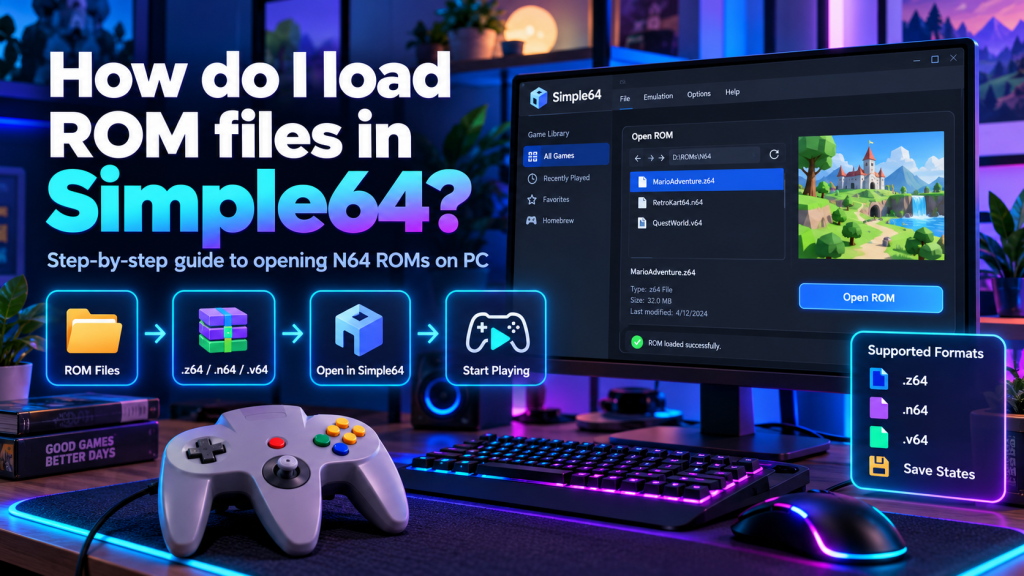
Simple64 is a free, open-source Nintendo 64 emulator that allows users to enjoy classic N64 games on compatible modern computers. However, downloading and installing the emulator is only the beginning. Understanding how to load ROM files in Simple64 is essential for launching games successfully. With the correct game files and settings, players can experience their favorite Nintendo 64 titles without requiring the original gaming console.
Loading ROM files in Simple64 is relatively straightforward, even for beginners who have never used an emulator before. This guide explains supported ROM formats, file preparation, loading instructions, controller configuration, and solutions to common problems that may interrupt gameplay.
What Are ROM Files in Simple64?
ROM files contain digital copies of game data originally stored on Nintendo 64 cartridges. Simple64 reads these files and emulates the console’s hardware, allowing compatible games to operate on modern computer systems.
Unlike ordinary Windows applications, ROM files are not installed as separate programs. Instead, they are opened through the emulator, which processes game instructions, graphics, sound, and controller inputs during gameplay.
Which ROM Formats Does Simple64 Support?
Nintendo 64 game files are commonly available in several formats. These extensions represent different methods of storing the same type of cartridge data, rather than separate gaming platforms.
| ROM Format | Description |
|---|---|
.z64 | Big-endian Nintendo 64 ROM format |
.n64 | Little-endian Nintendo 64 ROM format |
.v64 | Byte-swapped Nintendo 64 ROM format |
.zip | Compressed archive containing game data |
.7z | Compressed archive format |
Standard N64 ROM formats are commonly recognized by Mupen64Plus-based emulators. Compressed-file compatibility can depend on archive contents, so extracting the ROM is a useful troubleshooting step.
Preparing ROM Files Before Loading
Before opening a game, organize your legally obtained Nintendo 64 ROM files in a dedicated folder. Keeping files in one location makes browsing easier and prevents unnecessary confusion when switching between games.
Use clear filenames and avoid changing file extensions manually. Renaming an unsupported or damaged file to .z64 will not convert it into a valid Nintendo 64 ROM.
How to Load ROM Files in Simple64
Simple64 provides a straightforward method for opening compatible game files through its graphical interface. Once the emulator is running, users can browse their computer and select the game they want to play.
Follow these steps to load a ROM:
- Launch Simple64 on your computer.
- Locate the File menu in the emulator window.
- Select the option to open a ROM file.
- Browse to your Nintendo 64 games folder.
- Choose a compatible ROM file.
- Click Open to load the selected game.
- Allow the emulator to initialize gameplay.
If the ROM is valid and your computer meets the necessary requirements, the selected game should begin running. Initial loading behavior may vary depending on the game.
Can You Load Compressed ROM Archives?
Compressed ROM archives help users organize game collections and reduce unnecessary file management. Simple64’s underlying emulation technology supports common Nintendo 64 file formats, while archive handling depends on the available software components.
If a ZIP or 7z archive does not load, extract the actual ROM file using a trusted archive utility. Then select the extracted .z64, .n64, or .v64 file through Simple64.
Configuring Controls After Opening a Game
After loading a ROM, make sure your keyboard or connected gamepad responds correctly. Simple64 supports customizable input profiles that allow users to assign Nintendo 64 buttons to modern devices.
Open the controller configuration menu and choose your preferred input profile. Check the directional controls, action buttons, and analog stick before beginning important gameplay sections.
Saving Your Nintendo 64 Game Progress
Simple64 supports regular in-game saves and emulator save states. These features allow players to preserve progress without completing an entire game during a single session.
Useful Simple64 keyboard shortcuts include:
- F5: Save the current emulator state.
- F7: Load a previously saved state.
- F9: Reset the running game.
- P: Pause or resume gameplay.
- Alt + Enter: Switch between fullscreen and windowed mode.
- Escape: Exit the emulator.
Save states are convenient, but regular in-game saves provide additional protection against progress loss. Backing up important save files is also recommended.
Why Is Simple64 Not Loading My ROM?
Sometimes a ROM fails to open, displays a black screen, or causes the emulator to close unexpectedly. Common causes include corrupted game files, incompatible ROM modifications, unsupported hardware, or graphics driver problems.
Try these troubleshooting solutions:
- Confirm the ROM file uses a recognized Nintendo 64 format.
- Extract the game file from its compressed archive.
- Check whether the ROM is damaged or incomplete.
- Verify your CPU supports AVX2 instructions.
- Confirm your graphics card supports Vulkan 1.1.
- Update your graphics drivers.
- Test another legally obtained ROM file.
If other games work normally, the issue may involve the specific ROM rather than the emulator installation.
Do ROM Hacks Work With Simple64?
Some Nintendo 64 ROM hacks can work with Simple64, but compatibility is not guaranteed. Modified games may introduce changes that affect graphics rendering, game stability, or emulator behavior.
Certain ROM hacks may display corrupted graphics, flickering textures, or startup failures. Testing the original unmodified game can help determine whether the problem comes from the modification.
Keeping Your ROM Collection Organized
Organizing game files makes Simple64 easier to use, especially when managing multiple Nintendo 64 titles. A dedicated folder with recognizable filenames helps you locate games quickly.
Avoid storing important files in temporary download locations or deleting game data accidentally. Keeping backups of your legally obtained ROMs and game saves can make future restoration easier.
Conclusion
Simple64 makes loading Nintendo 64 ROM files relatively simple through its file-opening interface. By preparing compatible game files, choosing the correct format, configuring controls, and checking hardware requirements, users can launch supported games and enjoy classic Nintendo 64 experiences.
Although Simple64 is no longer actively developed, its existing ROM-loading and gameplay features remain useful for retro gaming enthusiasts. Keeping game files organized, using legally obtained ROMs, and following basic troubleshooting steps can help ensure a smoother and more reliable gaming experience.